Lets create sample business rules application for credit card validation based on the following conditions.
a)If Amount less than 25000 then set the result to "Bronze Card"
b)If Amount greater than or equal to 25000 and Amount less than 50000 then set the result to "Silver Card"
c) If Amount greater than or equal to 50000 and Amount less than 75000 then set the result to "Gold Card"
d) If Amount greater than or equal to 75000 then set the result to "Platinum Card"
1. Create a New SOA Application CreditCardValidationApplication.

2. Create a new project CreditCardValidationProject inside CreditCardValidationApplication.


3. Drag drop BPEL and create synchronous BPEL Process.


4. Modify the schema element name input to Amount.

5. Drag drop Business Rules component and name it as CreditCardValidationRules.


6. Drag and drop Business Rule next to BPEL process in the composite, connect BPEL process with the Rules Engine.


7. Add all the
List of Values and
List of Ranges in the
Bucketset.

Adding List Of Ranges
a) Amount < 25000
b) Amount >= 25000 and Amount < 50000
c) Amount >= 50000 and Amount < 75000
d) Amount >= 75000


Adding List of Values
a) "Bronze Card" b) "Silver Card" c) "Gold Card" d) "Platinum Card"


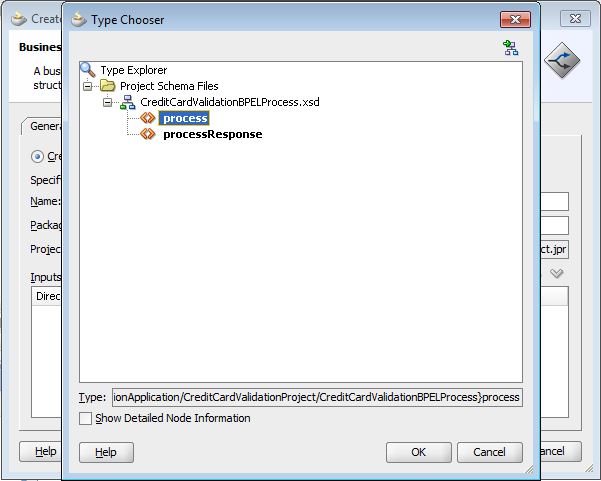
8. Modifying the Facts input(process) with List of Ranges(CreditCardRange) and output(processResponse) with List of Values(CreditCardList) in Bucketset field as shown below.


9. Create a Ruleset using Decision Table.

10. Add the following conditions and actions by creating a Rule inside the Decision Table
Conditions
a) Amount < 25000 b) Amount >= 25000 and Amount < 50000 c) Amount >= 50000 and Amount < 75000 d) Amount >= 75000
Actions: Set these actions as parametrized.
a) "Bronze Card" b) "Silver Card" c) "Gold Card" d) "Platinum Card"
a. If Amount < 25000 then send the response as "Bronze Card"
b. If Amount >= 25000 and Amount < 50000 then send the response as "Silver Card"
c. If Amount >= 50000 and Amount < 75000 then send the response as "Gold Card"
d. If Amount >= 75000 then send the response as "Platinum Card".

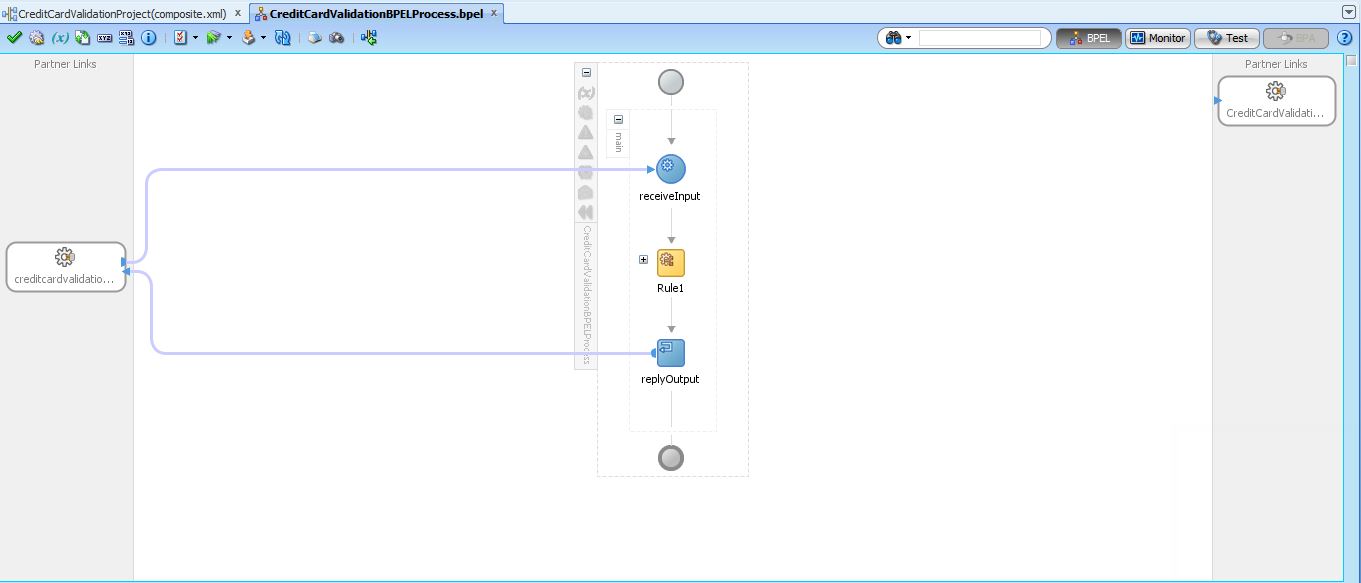
11. Edit the BPEL process, add the rules engine and edit this to pass input parameter as process request (Amount) and output parameter as process response (result).


Now ready to deploy, deploy and test will get appropriate results.
Thank You!!!!
Happy Learning!!!!